
Everyday use · 7 min read
Raising an improvement
Every field on the form, which ones are required, and what the server fills in for you.
Before you start
Only one field is genuinely required: the title. Everything else can be filled in later, and usually is — most improvements arrive as a sentence in a service review and gain their benefit case a week afterwards. Category is required too, but it always has a value: it starts on the first of your project's categories.
A new improvement always starts at Proposed. There is no status field on the form; you move it on from the record itself once it exists.
- Open the register Choose ImproveDesk in your Jira project sidebar.
- Select "Raise improvement" The blue button at the right of the toolbar.
- Give it a title, and ideally a description Then save. You can come back for the rest.

The form
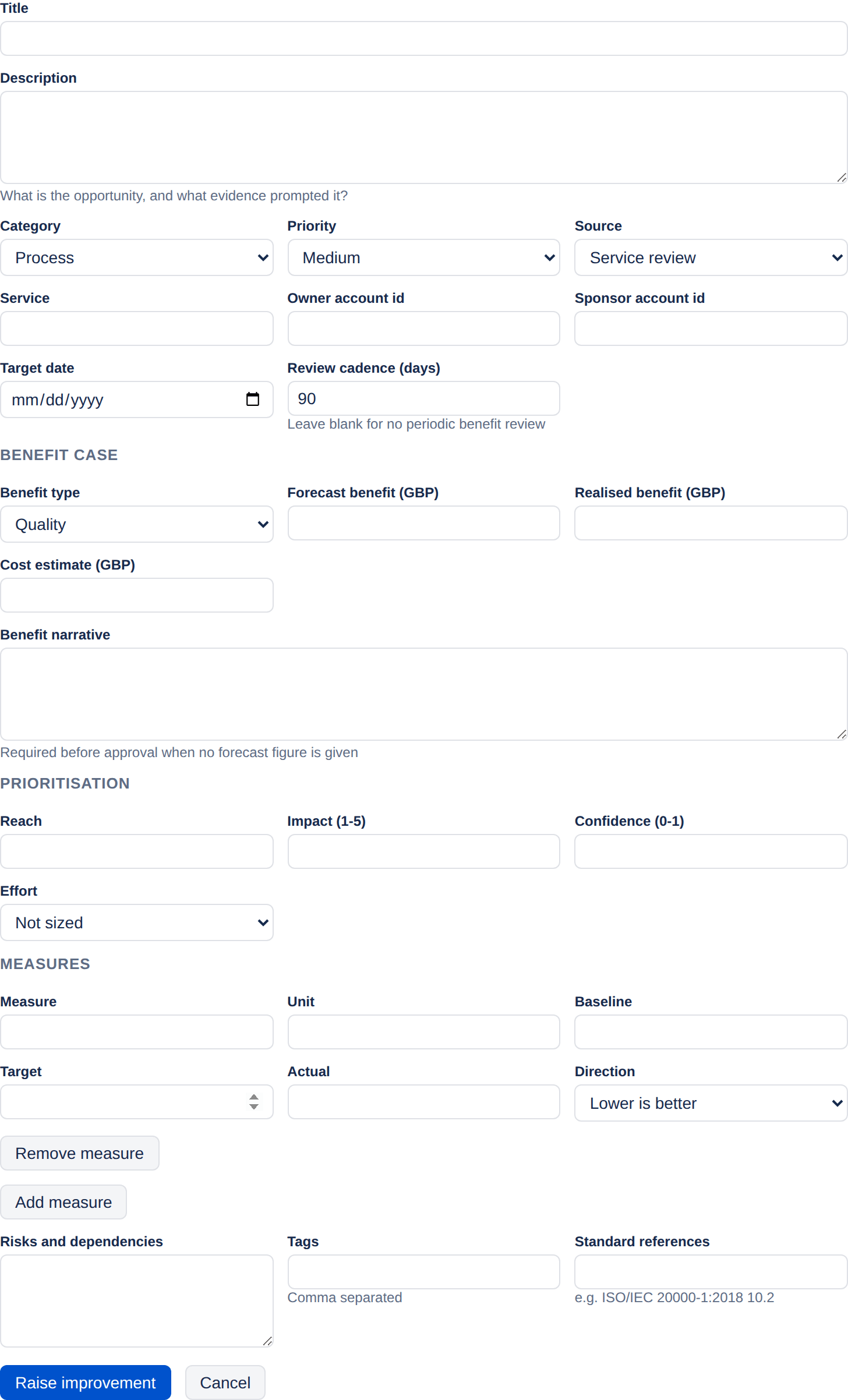
Describing the opportunity
| Field | What to put in it |
|---|---|
| Title Required | One line naming the outcome, not the activity. "Reduce P1 incident recurrence" reads better in a review than "Post-incident review project". |
| Description | Optional, but rarely worth skipping. The prompt underneath asks the right question: what is the opportunity, and what evidence prompted it? The evidence is the part people skip and auditors ask about. |
| Category | From the list your administrator configured. Out of the box: Process, Technology, People, Supplier, Documentation, Automation, Compliance and Customer experience. |
| Priority | Critical, High, Medium or Low. Defaults to Medium. |
| Source | Where it came from — incident, major incident review, problem, change review, service review, customer feedback, survey, internal audit, external audit, management review, risk assessment, staff suggestion, supplier review, or other. This is what lets you report audit-driven work separately later, so it is worth getting right. |
| Service | The service affected. Choose from the services your administrator configured — typing narrows the list — or type a new name — the hint beneath reads Pick a configured service or type a new one. With no services configured it is a plain text box. |
Ownership and dates
| Field | What to put in it |
|---|---|
| Owner | The person accountable for delivering it. Your project may require an owner before the improvement can be approved — see Project settings. |
| Sponsor | The person accountable for the benefit actually landing — usually the service or business owner rather than the person doing the work. |
| Target date | When it should be done. An open improvement past this date is flagged Overdue in the register and counted in the attention banner. The target day itself counts as on time. |
| Review cadence (days) | How often the benefit should be revisited. Defaults to your project setting. Clear the field for no periodic review — leaving it blank genuinely means none, it does not fall back to the default. |
Choosing a person. Type two or more letters of their name and pick them from the list. It offers only people who can browse this project — an owner who cannot see the register is not much of an owner. If the list stays empty for a name you know is right, your Jira account may lack the Browse users and groups permission, which Jira needs before it will search people at all; a Jira administrator can grant it.
Benefit case
Optional when you first raise the improvement, but your project may require it before approval. Covered properly in Benefits and measures — in short: pick a benefit type, and give either a forecast figure or a narrative explaining the value.
Prioritisation
Reach, impact, confidence and effort feed the RICE score. Leave them blank if you have not assessed it — an unscored improvement is reported as unscored rather than as zero. See Prioritising.
Measures
Select Add measure for each KPI you want to track. Each row takes a name, a unit, a baseline, a target, an actual and a direction.
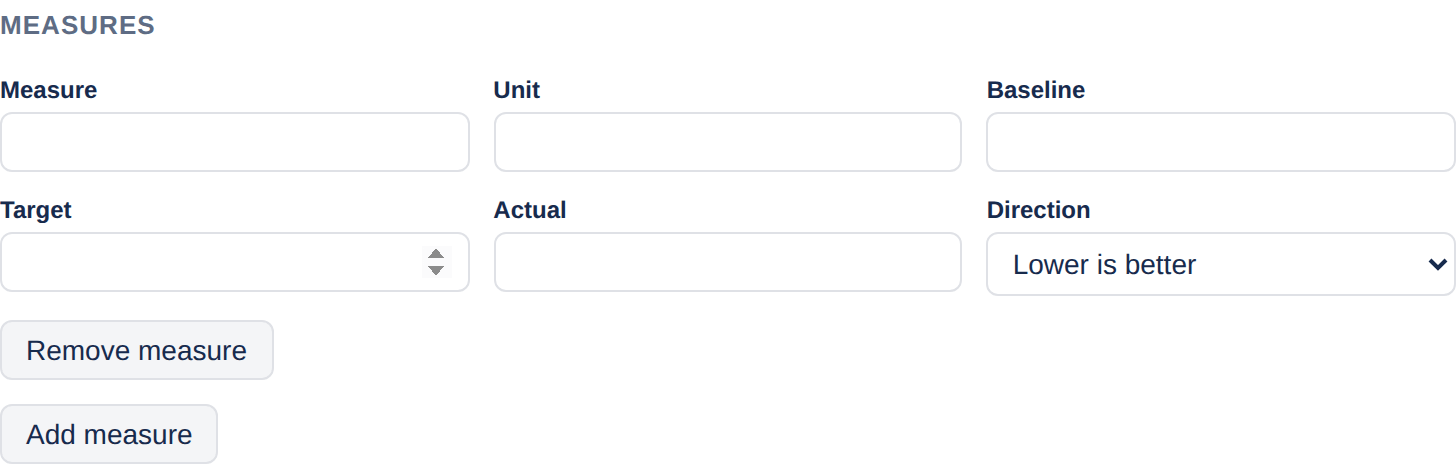
Direction is the field people miss. MTTR, incident counts and lead times all improve as they fall, so set them to lower is better. Get it wrong and a measure moving the right way will report as negative progress.
Context
The last section of the form holds three free-text fields.
- Risks and dependencies — free text; what could stop this landing.
- Tags — comma separated. Tags are searchable from the register.
- Standard references — the clause you are evidencing, for example
ISO/IEC 20000-1:2018 10.2. Free text on purpose, since a fixed clause list goes stale with each revision of a standard. Agree a convention in your team.
If the form will not save
The most common cause is the simplest: the title is empty. It is the one field marked with a red asterisk, and your browser will not send the form without it. A title of nothing but spaces gets past the browser and is refused by the server with Title is required.
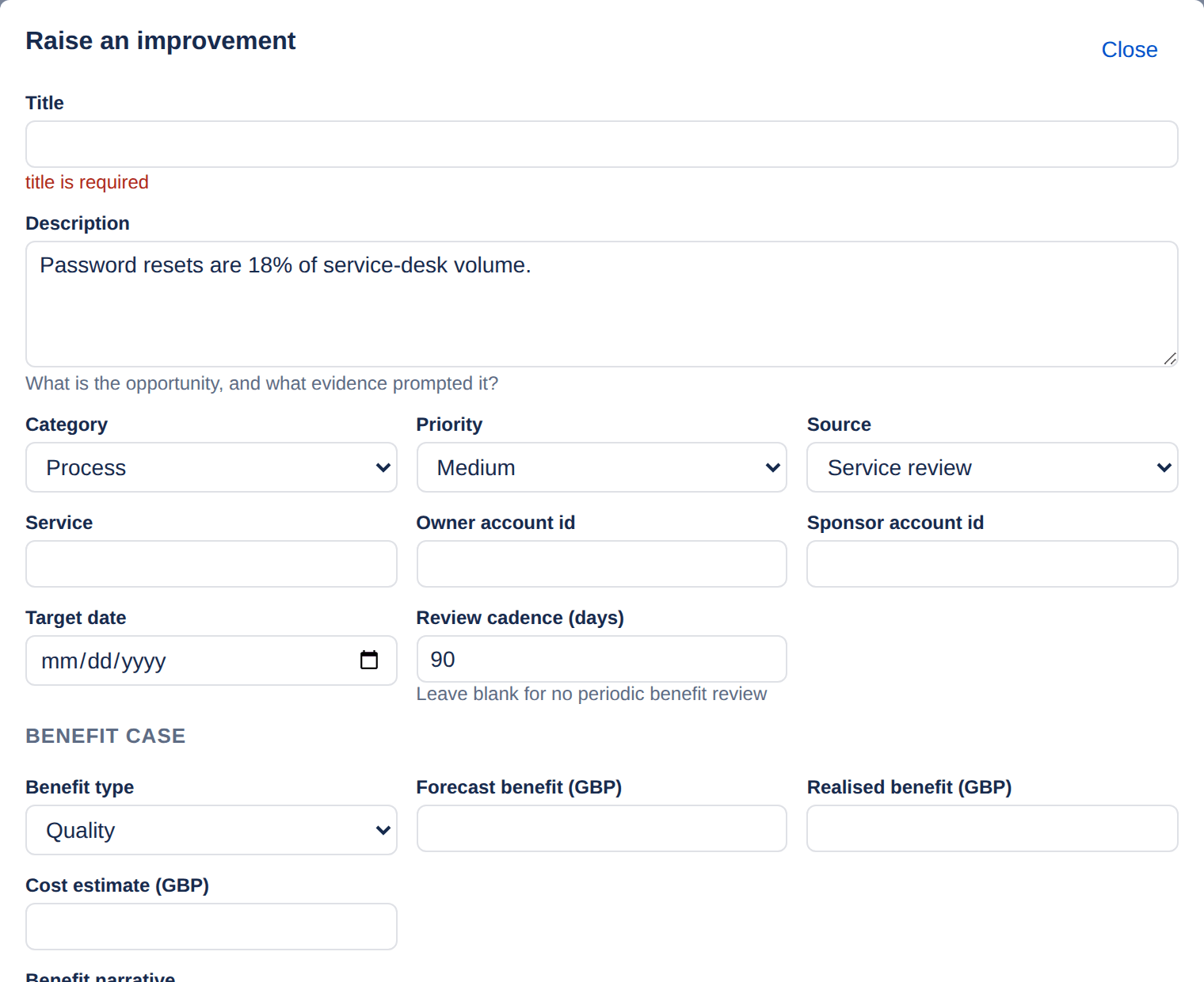
Other messages you may see, and what they mean:
| Message | Cause |
|---|---|
| An owner must be assigned before an improvement is approved | Your project requires an owner from Approved onwards. |
| A benefit case (forecast value or narrative) is required before approval | Your project requires a benefit case. Give a figure or write the narrative. |
| Record a realised benefit or at least one KPI before verifying | Always enforced. Verification is a claim that the improvement worked, so it needs evidence. |
| ABC is not a Jira issue key, such as OPS-1 | Seen when linking an issue from the record rather than on this form: the key typed is not the shape of a Jira key. See Delivery issues. |
What the server fills in
Some fields are not on the form because they are not yours to set. The server stamps them, and a patch from the browser that tries to change them is ignored.
- Reference — the next in sequence for the project: CSI-1, CSI-2 and so on.
- Raised by — your Atlassian account.
- Raised at — the moment you saved.
- Status — always Proposed for a new record.
- Deming stage — derived from the status and stored with the record.
Saving also writes the first entry in the improvement's audit trail: Created — Raised as CSI-15.
Editing later
Open the improvement from the register and choose Edit. It is the same form, pre-filled with what the record already holds. Every change is recorded field by field in the audit trail, so there is no cost to correcting something.
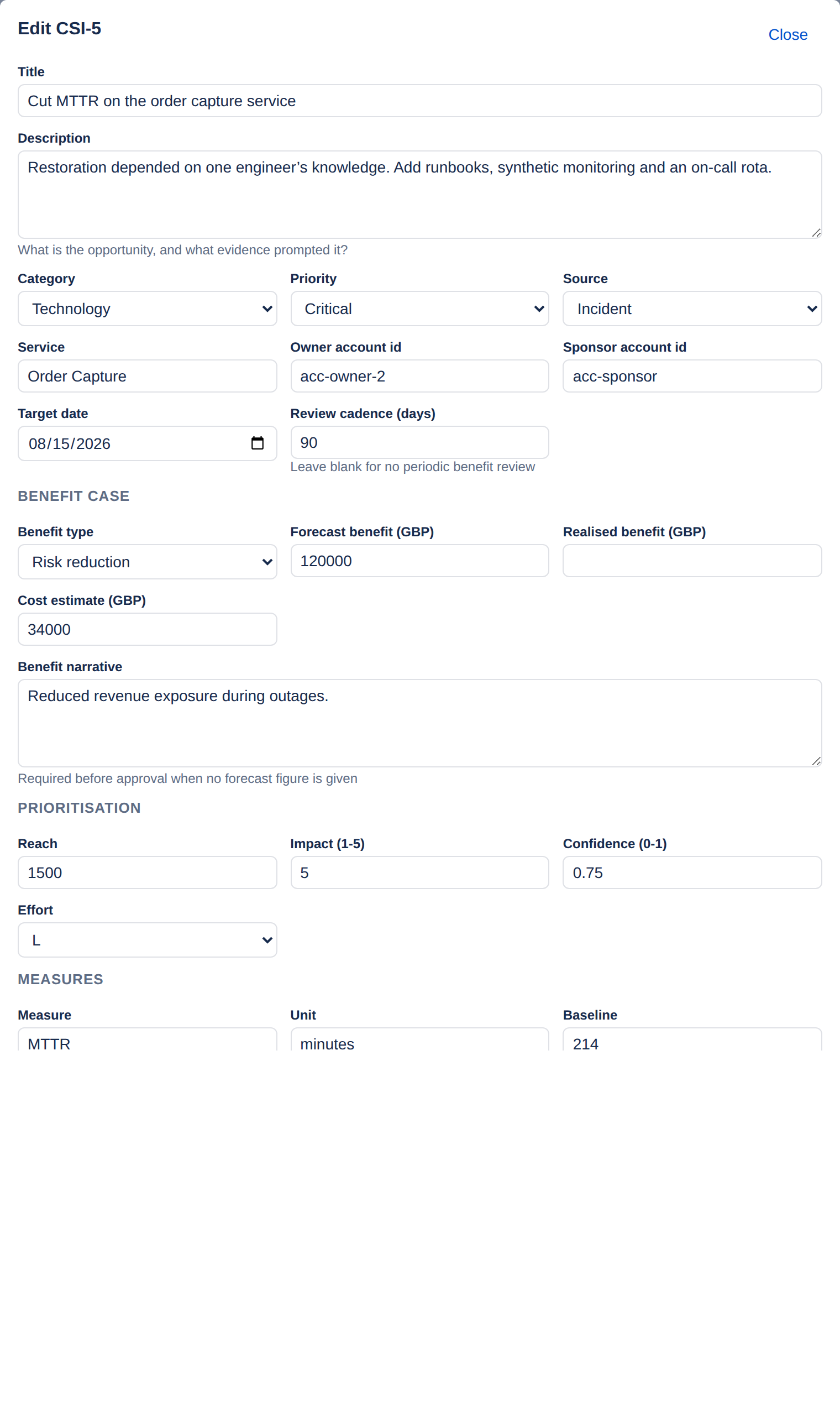
If somebody else edits the same record while you have the form open, your save is refused rather than overwriting theirs. Close the form, reopen the record and make your change again. This is deliberate — a silent overwrite in a monthly review loses somebody's benefit numbers.